Commitiquette
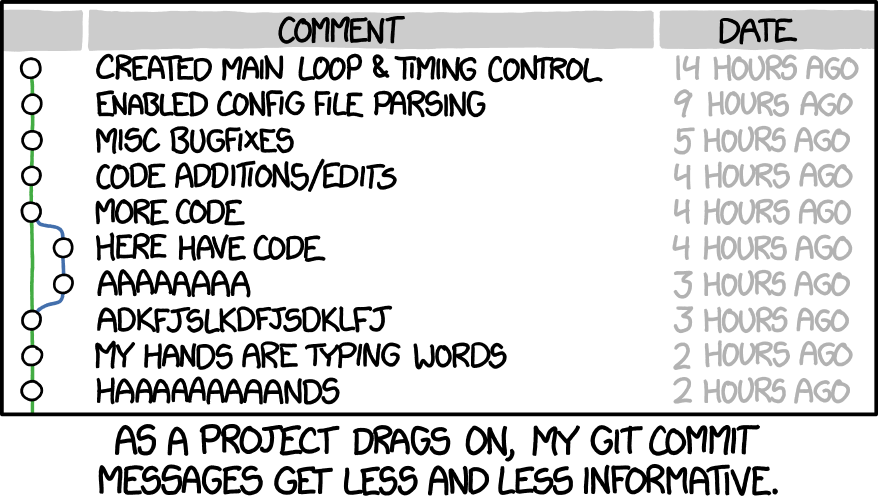
Introduction: Why good commit messages matter
This is a heavily cut down version of Chris Beam's article on good Git commits.
You can read the original authors article here
Basically good commits => improve readability => use more git features => better maintainability.
The seven rules of a great Git commit message
- Separate subject from body with a blank line
- Limit the subject line to 50 characters
- Capitalize the subject line
- Do not end the subject line with a period
- Use the imperative mood in the subject line
- Wrap the body at 72 characters
- Use the body to explain what and why vs. how
For example:
1 2 3 4 5 6 7 8 9 10 11 12 13 14 15 16 17 18 19 20 21 22 23 24 25 26 27 | |
1. Separate subject from body with a blank line
From the git commit manpage:
Though not required, it's a good idea to begin the commit message with a single short (less than 50 character) line summarizing the change, followed by a blank line and then a more thorough description. The text up to the first blank line in a commit message is treated as the commit title, and that title is used throughout Git. For example, Git-format-patch(1) turns a commit into email, and it uses the title on the Subject line and the rest of the commit in the body.
Firstly, not every commit requires both a subject and a body. Sometimes a single line is fine, especially when the change is so simple that no further context is necessary. For example:
1 | |
Nothing more need be said; if the reader wonders what the typo was, she can simply take a look at the change itself, i.e. use git show or git diff or git log -p.
However, when a commit merits a bit of explanation and context, you need to write a body. For example:
1 2 3 4 5 | |
2. Limit the subject line to 50 characters
50 characters is not a hard limit, just a rule of thumb. Keeping subject lines at this length ensures that they are readable, and forces the author to think for a moment about the most concise way to explain what's going on.
Tip: If you're having a hard time summarizing, you might be committing too many changes at once. Strive for atomic commits (a topic for a separate post).
So shoot for 50 characters, but consider 72 the hard limit.
3. Capitalize the subject line
This is as simple as it sounds. Begin all subject lines with a capital letter.
For example:
- Accelerate to 88 miles per hour
Instead of:
- accelerate to 88 miles per hour
4. Do not end the subject line with a period
Trailing punctuation is unnecessary in subject lines. Besides, space is precious when you're trying to keep them to 50 chars or less.
Example:
- Open the pod bay doors
Instead of:
- Open the pod bay doors.
5. Use the imperative mood in the subject line
Imperative mood just means "spoken or written as if giving a command or instruction". A few examples:
- Clean your room
- Close the door
- Take out the trash
A properly formed Git commit subject line should always be able to complete the following sentence:
- If applied, this commit will your subject line here
For example:
- If applied, this commit will refactor subsystem X for readability
- If applied, this commit will update getting started documentation
- If applied, this commit will remove deprecated methods
- If applied, this commit will release version 1.0.0
- If applied, this commit will merge pull request #123 from user/branch
Notice how this doesn't work for the other non-imperative forms:
- If applied, this commit will fixed bug with Y
- If applied, this commit will changing behavior of X
- If applied, this commit will more fixes for broken stuff
- If applied, this commit will sweet new API methods
Remember: Use of the imperative is important only in the subject line. You can relax this restriction when you're writing the body.
6. Wrap the body at 72 characters
Git never wraps text automatically. When you write the body of a commit message, you must mind its right margin, and wrap text manually.
The recommendation is to do this at 72 characters, so that Git has plenty of room to indent text while still keeping everything under 80 characters overall.
A good text editor can help here. It's easy to configure Vim, for example, to wrap text at 72 characters when you're writing a Git commit. Traditionally, however, IDEs have been terrible at providing smart support for text wrapping in commit messages (although in recent versions, IntelliJ IDEA has finally gotten better about this).
7. Use the body to explain what and why vs. how
This commit from Bitcoin Core is a great example of explaining what changed and why:
1 2 3 4 5 6 7 8 9 10 11 12 13 14 15 16 17 18 19 20 21 | |
Take a look at the full diff and just think how much time the author is saving fellow and future committers by taking the time to provide this context here and now. If he didn't, it would probably be lost forever.
In most cases, you can leave out details about how a change has been made. Code is generally self-explanatory in this regard (and if the code is so complex that it needs to be explained in prose, that's what source comments are for). Just focus on making clear the reasons why you made the change in the first place—the way things worked before the change (and what was wrong with that), the way they work now, and why you decided to solve it the way you did.
The future maintainer that thanks you may be yourself!
Tips
Learn to love the command line. Leave the IDE behind.
For as many reasons as there are Git subcommands, it's wise to embrace the command line. Git is insanely powerful; IDEs are too, but each in different ways. I use an IDE every day (IntelliJ IDEA) and have used others extensively (Eclipse), but I have never seen IDE integration for Git that could begin to match the ease and power of the command line (once you know it).
Certain Git-related IDE functions are invaluable, like calling git rm when you delete a file, and doing the right stuff with git when you rename one. Where everything falls apart is when you start trying to commit, merge, rebase, or do sophisticated history analysis through the IDE.
When it comes to wielding the full power of Git, it's command-line all the way.
Remember that whether you use Bash or Zsh or Powershell, there are tab completion scripts that take much of the pain out of remembering the subcommands and switches.
Read Pro Git
The Pro Git book is available online for free, and it's fantastic. Take advantage!